This article was published over 2 years ago. Some information may be outdated.
Most people do not know what sits behind Docker. Understanding the underpinning makes everything more transparent -- you stop treating Docker as a black box and start seeing it for what it actually is.
To understand how Docker works, we need to cover some foundational concepts. These concepts are the bones of Docker.
Prerequisites
This is an advanced topic. You should already know the basics of Docker -- running and stopping containers is enough.
You need Docker installed on a Linux machine. I use VMWare Fusion (a virtual machine program for macOS) for this, but any virtualization platform works.
There are two reasons why Linux is non-negotiable here:
- Docker runs as a lightweight virtual machine on macOS, so it has nothing to do with processes. As we will see, processes are the bones of Docker.
- The
/procfilesystem and cgroup manipulation we cover below only work on Linux.
Do not use Docker on production for macOS. Use it for development and testing only.
Docker vs VMs
One of the most frequently asked questions is what the difference between Docker and VMs is.
The short answer:
Docker relies on Linux namespaces and control groups. VMs rely on a hypervisor.
That answer is technically correct but not particularly illuminating on its own. To understand it properly, we need to start with Linux processes.
Linux Processes
In Linux, a process is an instance of a running (executing) program. Each process is assigned a PID (process ID) by the system.
Every process is also a child of a parent process (PPID), and the root of the entire process tree is the init process.
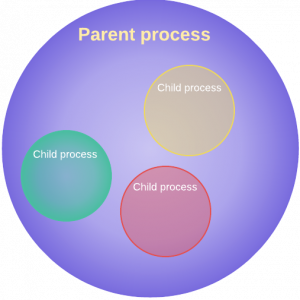
You can view the running process tree with:
ps axjf
You can also view the process tree by running
pstreewithout any options.
The ps (process status) command is one of the most used commands on Linux. It provides information about currently running processes.
To view all running processes:
ps aux
Here is what each argument means:
ashows all processes.ushows detailed information about each process.xincludes processes not associated with a terminal, such as daemons.
auxis by far the most common combination of options for thepscommand.
Each process gets its own folder with relevant files -- configurations, root directory, security settings, and more. These files live under /proc/PROCESS_ID and can be viewed just like any other directory.
This means you can modify container files directly from the /proc directory on the host. The container is just a normal Linux process with some additional constraints.
We will get into
/procshortly.
Virtual Machines
A Virtual Machine (VM) is software installed on a physical computer to run an operating system and applications. Here is Windows 10 running inside a MacBook Pro using VMWare Fusion:
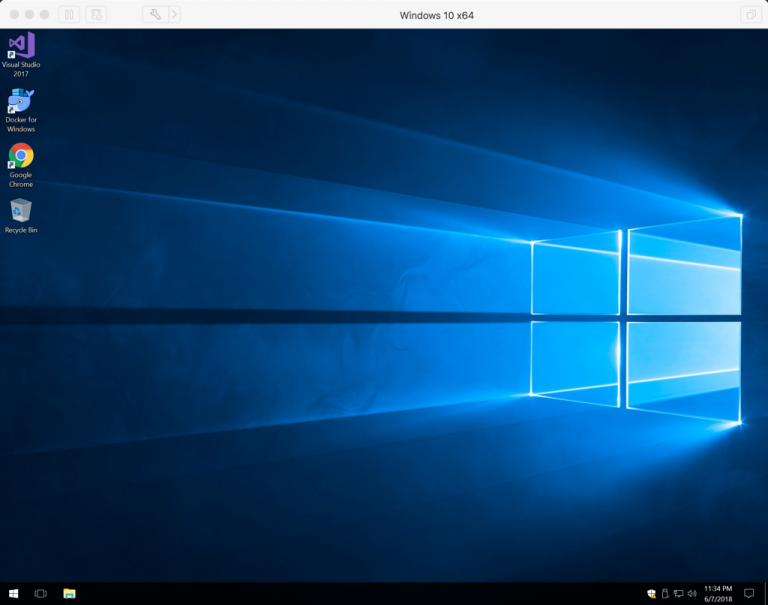
A VM is a slice of physical hardware with limited resources (CPU, RAM, Storage). It behaves as if it were an independent machine.
Take a look at the Windows 10 VM settings. This VM has one processor core and roughly 4 GB of RAM:
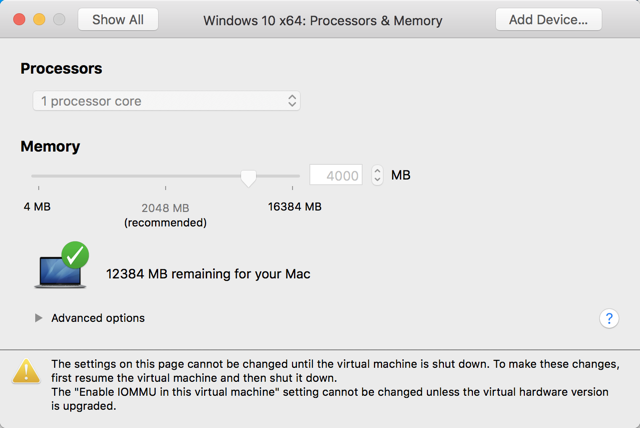
Windows 10 inside the VM has no idea about the other hardware resources on the host machine. It only knows about what we assign to it.
The mechanism that makes this work is the Hypervisor.
Hypervisor (also called Virtual Machine Monitor or VMM) is software that creates virtualized environments. These environments are entirely separated from the host machine and from each other.
There are two types of hypervisor:
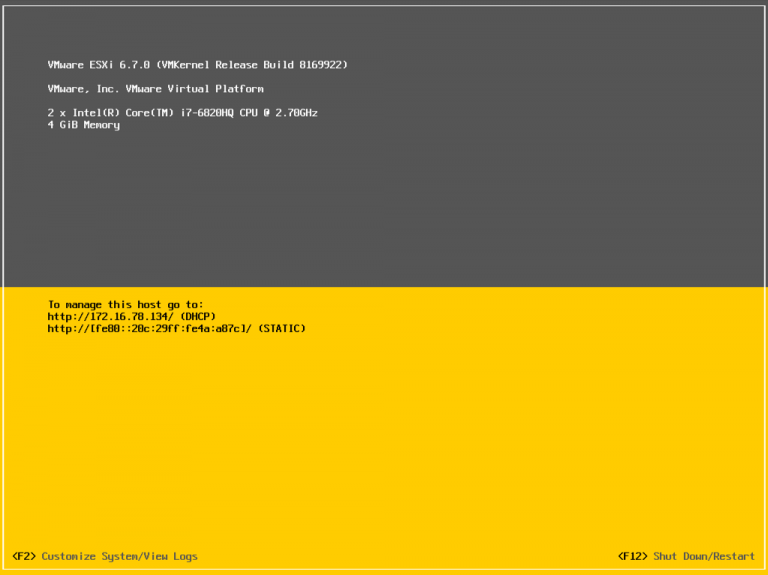
Type 1: Mostly used for servers. The hypervisor is installed directly on the hardware, just like installing an operating system from a bootable device. The most common Type 1 hypervisors are:
- VMware ESXi: The industry standard for enterprise virtualization.
- Hyper-V: From Microsoft.
- KVM: From the Linux world.
The following screenshot shows a VMware ESXi instance installed directly on a physical machine:
Type 2: The hypervisor is installed on top of an existing operating system. For example, you can run Windows 10 inside macOS or vice versa. Common Type 2 hypervisors include:
- VirtualBox: Cross-platform.
- VMware Fusion: macOS only.
- Parallels: macOS only.
- VMware Workstation: Windows only.
With that context established, let us look at what containers actually are.
Containers
A container is a Linux kernel feature that allows us to isolate processes.
A container is just a Linux process running in a sandbox. That is the single most important thing to understand about Docker.
When you create an isolated process (container), that process cannot see the host processes. It does not even know they exist. It is entirely separated from the host and from other containers.
Let us demonstrate this by running a Memcached container:
docker run --name memcached -d memcached
Now examine the running processes inside it:
docker top memcached
The output:

The
docker topcommand lists the running processes inside the container, not on the host.
There is only one process running inside the Memcached container. It is completely isolated from the host and from other containers. It cannot access any host processes.
Since a Docker container is just a Linux process, we can prove it by running the following on the host:
ps aux | grep memcached | head -1
The output confirms the Docker container is a normal Linux process. Notice the PID matches:
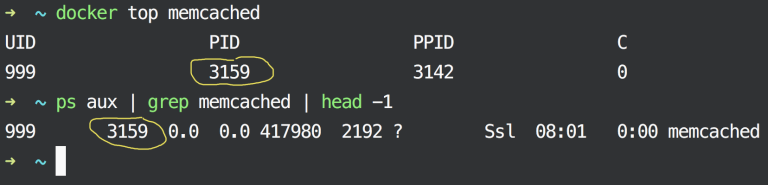
It is just a normal Linux process named memcached running on the host machine. Keep this fact in mind -- everything else builds on it.
Now let us get into /proc and see how we can modify container contents without using Docker at all.
Each Linux process gets its own directory inside /proc. The /proc directory is a virtual filesystem that contains process information.
We will create a file inside the Memcached process root directory on the host, then verify it appears inside the container. First, get the PID:
MEM_PID=$(pgrep memcached)
cd /proc/$MEM_PID
Create an empty file inside the container's root directory:
cd root/
touch created_by_${HOST}
List the / folder inside the Memcached container:
docker exec -it memcached ls /
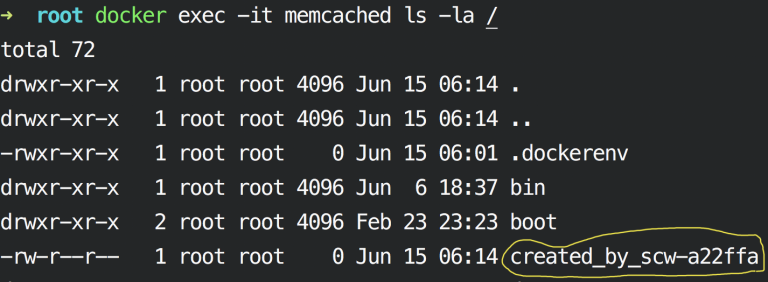
Any change made in /proc is reflected inside the container, because the container is just a regular Linux process.
Now do the reverse -- create a file inside the container and view it on the host:
docker exec -it memcached touch /tmp/just_a_temp
ls tmp
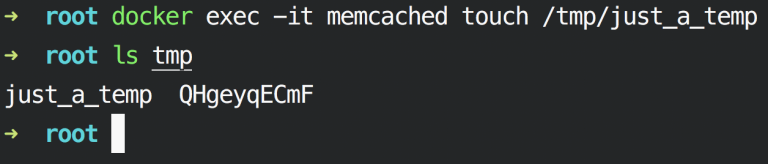
Both files are accessible from both sides. There is no barrier between the host and the container's /proc entry.
Namespaces
Docker relies on Linux namespaces for containerization. Without namespaces, containers would not exist.
Consider PHP and Postgres processes running on the same host. Without isolation, PHP can modify Postgres resources -- it could delete Postgres data. With namespaces, PHP does not even know Postgres exists.
Namespaces are a Linux kernel feature that isolates processes from each other and limits what each process can see. Each namespaced process gets its own:
- Process ID (pid): Isolates the PID number space.
- Mount (mnt): Isolates filesystem mount points.
- Network (net): Isolates network interfaces.
- Interprocess Communication (ipc): Isolates IPC resources.
- UTS: Isolates hostname and domain name.
- User ID (user): Isolates the cgroup root directory.
Namespaces cannot limit access to physical resources such as CPU, RAM, and storage. That is a different mechanism.
You can use the unshare command to create a namespace and attach the current process to it. Here we run a bash prompt in its own namespace:
unshare --fork --pid --mount-proc bash
ps aux
exit
Since bash is running in its own namespaced area, you must issue exit to terminate it and return to the host shell.
Control Groups
Control groups (aka cgroups) limit access to physical resources such as CPU, RAM, and storage.
Unlike namespaces, a cgroup configuration is a plain text file located at /proc/PROCESS_ID/cgroup:
cat /proc/$MEM_PID/cgroup
The second column (colon-separated) contains names like pids, cpu, cpuacct, net_cls, and others. These correspond to physical directories on disk under /sys/fs/cgroup/.
Each Docker container stores its cgroup configuration in /sys/fs/cgroup/CGROUP_TYPE/docker/CONTAINER_ID:
#Memory configuration for Memcached
#Please change 1b1... to the Memcached container ID
ls -l /sys/fs/cgroup/memory/docker/1b15587a72eb8d4d3343c78f8140c695dc1af4151103729049dcab4329f2c46e
Suppose you want to limit Memcached to 1 GB of RAM instead of 4 GB. First, check the current memory allocation:

Modify the memory limit:
echo 1073741824 > /sys/fs/cgroup/memory/docker/MEMCACHED_CONTAINER_ID/memory.limit_in_bytes
Verify the change:
docker stats --no-stream memcached

The Memcached container now has 1 GB of RAM.
Do not modify cgroup files or Docker configuration files in production. Use Docker's built-in resource limits instead. This is a learning exercise, not a deployment strategy.
Summary
- Docker containers are Linux processes. They are not virtual machines. A container is a process running with namespace isolation and cgroup resource limits.
- Namespaces provide isolation. They control what a process can see -- its own PID space, mount points, network interfaces, and more.
- Control groups (cgroups) limit resources. They control what a process can use -- CPU, RAM, and storage.
- The
/procfilesystem exposes container internals. Because containers are just processes, you can inspect and modify them through/proc/PROCESS_IDon the host. - VMs use hypervisors; Docker uses kernel features. This is the fundamental architectural difference. VMs virtualize hardware. Docker isolates processes.
- Never modify cgroup files in production. Use Docker's built-in
--memory,--cpus, and related flags instead.